Open a working copy
Choose an image from your device or the available import method. Keeping the original untouched gives you a safe reference if an adjustment goes too far.
Image editing basics
An online image editor is a browser-based workspace for making practical changes to pictures without installing a traditional desktop program. This guide explains the concept, common limits, and everyday uses.
This page is an image-editing guide, not an editor. The link opens Supavisual’s home page without carrying a prompt or image. Sign in there to upload; an eligible paid subscription is required for AI tools. Any paired images here are illustrations of concepts, not verified processing results from this site or Supavisual.
Plain-language definition
What is image editor online? It is a web-based image editor that lets you open, adjust, and prepare visual files through a browser. The editor may provide tools for cropping, resizing, color correction, retouching, text placement, and other routine changes, depending on the product.
A browser image editor may not match the depth of a specialist desktop application for complex compositing, advanced color management, or highly repeatable production work.
WorkaroundUse it for preparation and quick revisions, then move complex projects into a dedicated desktop editor when necessary.
Editing can correct exposure, framing, and some distractions, but it cannot reliably recreate detail that was never captured in the original image.
WorkaroundStart with the highest-quality source available and make moderate adjustments before exporting.
An online image editor often focuses on common formats and may limit support for layered, camera-native, or unusually large files.
WorkaroundKeep an original copy and convert a working duplicate to a supported format when appropriate.
The privacy of an online image editor depends on how the service handles uploads, processing, storage, and deletion.
WorkaroundReview the service policy and avoid uploading sensitive images unless its handling practices meet your requirements.
A simple workflow
Most browser-based editing follows a short sequence: bring in an image, make controlled changes, then save a usable result. The exact controls vary, but the underlying workflow is familiar.
Choose an image from your device or the available import method. Keeping the original untouched gives you a safe reference if an adjustment goes too far.
Use the image editor to crop, resize, correct light and color, remove distractions, add text, or prepare the composition for its intended destination.
Check the result at a useful viewing size, confirm that the framing and readability are correct, then save or export the edited copy in a suitable format.
Choose the right starting point
An online image editor is most useful when the task is clear and the file fits the service’s supported workflow. These related guides cover common access and capability questions before you begin.
This guide explains what to look for when you want browser-based editing without adding a desktop installation.
This page separates ordinary browser editing from workflows that use AI-assisted image changes.
This practical guide follows the main controls and decisions involved in completing an edit online.
This comparison helps PC users weigh browser access against software installed directly on a computer.

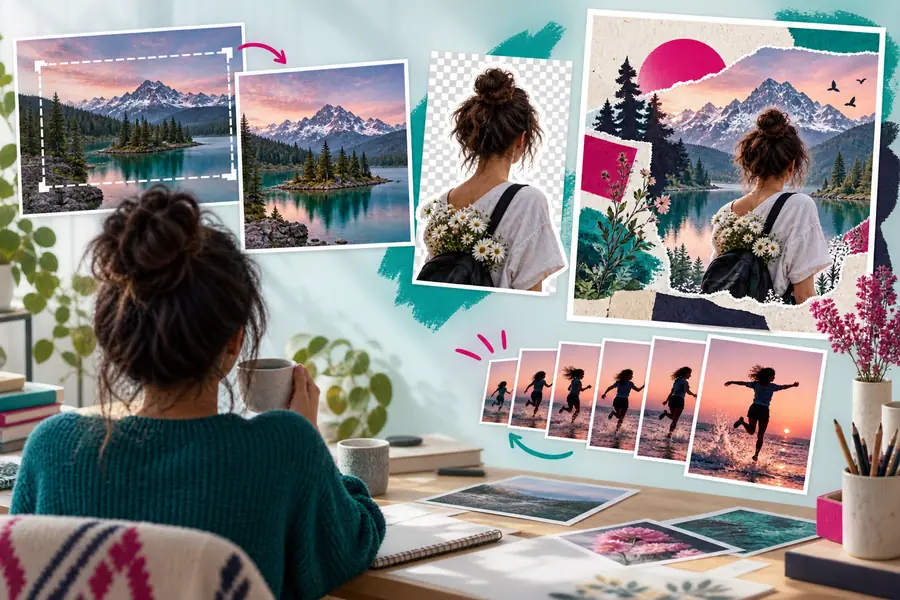
A simple edit can improve framing, tonal balance, and presentation without changing the subject.
Online image editor
Inside a compatible web browser
Desktop image editor
As software installed on a computer
Online image editor
Usually begins by opening a website and importing a file
Desktop image editor
Requires installation, updates, and local configuration
Online image editor
Cropping, resizing, color changes, text, and simple cleanup
Desktop image editor
Cropping, resizing, color changes, text, and simple cleanup
Online image editor
May need a connection for access or processing
Desktop image editor
Can often work offline after installation
Online image editor
Useful across supported computers and browsers
Desktop image editor
Usually tied to the operating system and installed device
Online image editor
Varies by service and may be intentionally streamlined
Desktop image editor
Often offers broader controls for layered and repeatable work
Online image editor
Convenient when a link or browser session is part of the workflow
Desktop image editor
Usually depends on exporting files or using separate collaboration tools
Online image editor
Quick corrections, routine content, and edits away from a main workstation
Desktop image editor
Detailed projects, large files, and specialized production requirements
Common audiences
Different people choose an online image editor for different reasons, but the common benefit is a shorter path from an existing image to a usable version. The best workflow depends on the task, source file, and required finish.
They need to crop screenshots, clarify diagrams, add labels, or prepare visual material for a lesson or assignment.
A browser workflow keeps small visual tasks moving without requiring a specialized computer lab.
image editor examples freeThey update product pictures, social graphics, announcements, and simple promotional images between larger projects.
A consistent image editor workflow helps turn existing assets into appropriately sized, readable content.
image text editor onlineThey make quick crops, exposure adjustments, portrait touch-ups, or preview versions while away from their main workstation.
An online image editor can handle useful first-pass work before a more detailed finishing session.
best ai photo editor for photographersThey prepare a profile picture, correct a family photo, remove an awkward border, or resize an image for a form or website.
A focused browser tool reduces the need to learn a full professional application for one straightforward task.
image editor freeNow that you know what an online image editor is, you can decide whether your task suits a browser workflow. Open the workspace with a working copy, make one change at a time, and review the result before keeping the export.
Questions answered
It is a browser-based tool for changing image files without relying on a traditional desktop installation. Depending on the service, it may support tasks such as cropping, resizing, color correction, retouching, text placement, and export.
You usually open or import a picture, apply adjustments through visual controls, and save an edited copy. The workflow is similar to other image editor software, although available tools, file support, and processing methods vary by service.
Sometimes, especially for quick corrections, routine content, and lightweight projects. It may be less suitable for complex layered compositions, specialized color workflows, very large files, or production tasks that depend on advanced desktop features.
Yes, when the interface presents the essential controls clearly and the task is well defined. Beginners can start with a duplicate image, make one adjustment at a time, and compare the result before exporting.
An online image editor is designed to run through a web browser, so it generally avoids the installation step associated with desktop software. You may still need a supported browser, a compatible file, and an internet connection depending on the service.